
MASCOTS FOR SUCCESS STATES
A small win deserves a familiar face.
An email sent. An import completed. A first project published. Use your mascot to acknowledge the result, then give people the details and next step they need.
Real CreateMascot artwork. Screen copy below is an example you can adapt.
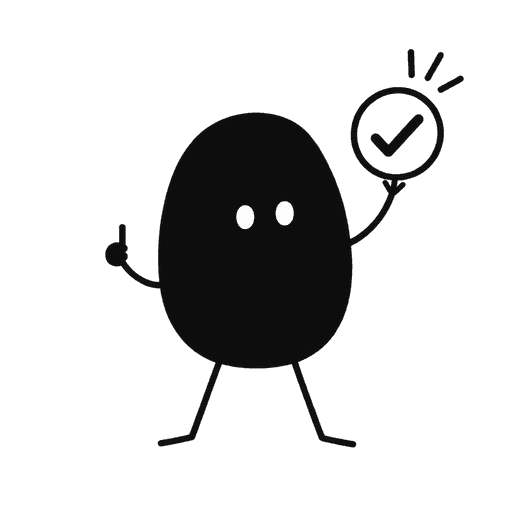 Your project is published.
It’s ready to share. Open the published page to check the result.
View projectMake the moment useful.
Success feedback should confirm a real outcome. A small approval gesture suits routine completion; a more expressive pose can mark a first achievement. Reusing the same character from onboarding and loading connects these moments without requiring a new visual identity for each feature.
Confirm the specific result
Say what was saved, sent, or published. Where relevant, include a receipt, destination, or link to the created item. ‘All done’ alone may leave the person unsure what happened.
Scale the celebration to the task
A subtle check is enough for everyday saves. Reserve confetti and large illustrations for milestones so routine work stays quick and the special moments keep their meaning.
Offer a useful continuation
Help the person view the result, share it, or return to their workspace. Avoid showing a prominent upsell before confirming the outcome they came for.
Try this scene prompt.
Approve your mascot and style first, then adapt this example brief for the scene you need.
Use my approved mascot and style references. Create a satisfied, friendly approval gesture beside one simple check symbol. Keep the face, silhouette, colors and permanent accessories consistent. Square canvas, clean composition, restrained celebration. No text, no extra characters, no dense confetti.
Compare the result with your approved reference: face, silhouette, colors and permanent details. Generative results can vary; review each illustration before using it.
From illustration to interface.
Show success only after the operation is confirmed. Keep important details in HTML and do not rely on a green icon alone. If the result can be undone, place the undo action near the confirmation. A decorative mascot can use empty alt text when the message already explains the outcome.
You receive PNG artwork. Add your own text and controls in your product or design tool; the image is not an editable SVG or a working screen.
See how one Nellie reference became five illustrations ↗A few useful answers.
Can I use the same success pose in email?
Yes. Export the PNG and adapt its displayed size for your template. Keep the confirmation and links in text, and check the email with images disabled.
How do I keep success and error poses consistent?
Generate both from the same approved identity and style. Compare their silhouette, face, colors and accessories together before approving them; the expression and prop can change.
Same character. Next moment.
Mascots for onboarding
Make yourself at home.
Mascots for loading states
Preparing your export.

Mascots for newsletters
One idea for your week.
Give your product a familiar face.
Start with your own artwork or describe a new character. Approve its identity and style, then generate the scenes you need.
Maker Pack: $20 once for 200 credits. A square image uses 5 credits; a landscape placement uses 8. Generation requires credits.